Design AI Tools
4 tools
Design AI tools help people create graphics, presentations, slide decks, and layouts without needing years of formal design training. They sit between a blank canvas and a finished asset, generating drafts from a prompt, suggesting layouts, removing backgrounds, resizing for different channels, and turning rough notes into polished slides. The category ranges from all-in-one graphic editors aimed at non-designers to AI assistants embedded inside professional tools used by working creatives.
The reason this matters is that most visual work is not a single act of artistic genius; it is a series of repetitive, time-consuming tasks. Resizing a banner for five platforms, drafting a ten-slide deck, cleaning up a product photo, or finding an on-brand color palette eats hours that could go toward the message itself. AI tools compress that busywork. A good tool gets you to a usable first draft in minutes, leaving you to refine tone, hierarchy, and brand fit. The trade-off is that generated layouts can look generic, miss brand guidelines, or arrange information poorly, so human judgment on clarity and taste still decides the final result.
The leading tools today fall into a few groups. Canva is the broad, approachable platform for social graphics, documents, and presentations, with Magic Design and other AI features built in. Gamma and Tome focus on generating presentations and narrative decks from a prompt or outline. Microsoft Designer brings template-driven graphic creation tied to the Microsoft ecosystem. Figma AI adds generative and assistive features inside the professional interface design tool that product teams already use. Each makes different bets on audience, output type, brand control, and how much it integrates with the rest of your workflow.
Who is it for?
For individuals and small businesses, the priority is getting professional-looking results fast without a designer. Canva is the common starting point because its template library, drag-and-drop editor, and Magic Design features let non-designers produce social posts, flyers, and simple presentations quickly. Microsoft Designer is a natural fit for people already in the Microsoft 365 world who need quick graphics and social content.
For people who live in presentations, such as founders, consultants, and educators, tools like Gamma and Tome are built to turn an outline or prompt into a structured deck in minutes. They handle layout and pacing so you can focus on the narrative, and they are well suited to pitch decks, internal updates, and teaching material where speed and a clean look matter more than pixel-level control.
For professional designers and product teams, the deciding factor is integration with existing tools and the ability to keep full control over the output. Figma AI adds generative and assistive features inside an interface design tool teams already use for UI, prototypes, and design systems, so the AI accelerates work without forcing a switch in platform. These users want assistance that respects their components, styles, and brand libraries rather than generic templates, and they evaluate AI features by how cleanly they fit into a professional workflow.
Pricing guide
Pricing in this category generally follows a freemium model. Free plans are genuinely useful for casual and occasional work: Canva offers a free tier with a large template library and core editing, and tools like Gamma and Tome let you create a limited number of projects or generations at no cost. Microsoft Designer is available free within the Microsoft ecosystem. Starting on a free plan is the right way to test whether a tool fits your workflow before paying.
Paid individual and pro plans typically unlock premium templates, larger asset libraries, more AI generations or credits, brand kits, and the ability to export without watermarks. Canva's paid plan adds brand controls, background removal, and resizing across formats, while presentation tools charge for additional AI credits, custom branding, and analytics. Most individual paid plans land in a modest monthly range, and many vendors offer a discount for annual billing.
Team and business tiers add per-seat pricing with collaboration and brand governance: shared brand kits, locked templates, approval workflows, centralized billing, and admin controls. For organizations, these features keep output on-brand at scale and are usually the reason to upgrade beyond a single seat. AI generation is often metered through credits or monthly limits, so heavy users should check those caps. Because plans, credit allowances, and limits change frequently, always confirm current pricing on each vendor's official page before committing.
How to choose
Start with what you actually need to produce. If your work is social graphics, marketing assets, and simple documents, a broad editor like Canva covers the most ground. If you mainly build presentations and decks, a presentation-focused tool such as Gamma or Tome will get you there faster. If you design product interfaces, Figma AI inside Figma is the right home. Matching the tool to your primary output prevents paying for capabilities you will not use.
Next, weigh ease of use against control. Template-driven tools get beginners to a clean result quickly but can feel constraining for fine layout work, while professional tools give precise control at the cost of a steeper learning curve. Be honest about your skill level and how much polish the job requires.
Brand consistency is the third axis. If you produce a high volume of on-brand material, look for brand kits, locked templates, shared fonts and colors, and approval workflows so output stays consistent across a team. Without these, AI-generated designs drift off-brand quickly.
Then check export options and integrations: the file formats you need, whether assets connect to the rest of your stack, and how the tool handles handoff to other software. Finally, consider collaboration and licensing—real-time editing, comments, and clear rights to use generated images and templates commercially. Always test a tool on a real project, not a demo, before standardizing your team on it.
Common mistakes
The most common mistake is settling for the default template look. AI tools and template libraries make it easy to ship a design that is technically fine but visually generic and indistinguishable from thousands of others. Spend a few extra minutes adjusting colors, fonts, spacing, and imagery to match your brand so the result feels intentional rather than auto-generated.
A second mistake is ignoring brand consistency across assets. When different people generate designs ad hoc, fonts, colors, and logos drift, and the body of work stops looking like one brand. Set up a brand kit and shared templates early, and route high-visibility material through an approval step.
Third, people cram too much onto a slide or graphic because the tool makes adding elements effortless. Good design is largely about what you leave out. Prioritize one clear message per slide, use white space deliberately, and resist filling every corner.
Fourth, many users overlook licensing and usage rights for AI-generated images, stock assets, and fonts, which can create legal risk in commercial work. Check each tool's terms for what you may use and where. Finally, a frequent error is choosing a tool by its marketing rather than testing it on a real deliverable: a template that looks great in a demo may not fit your content, format, or export needs. Run a real project through it before committing your team.
Quick comparison
| Tool | Pricing | Best for |
|---|---|---|
| Framer | Freemium · Free tier, Mini $5/mo, Basic $15/mo, Pro $30/mo | Framer is an AI-powered website builder that generates professional, responsive websites from text prompts with a visual drag-and-drop editor, built-in CMS, and stunning animations. |
| Napkin AI | Freemium · Free tier with basic features, Pro $24/mo | Napkin AI instantly transforms any text into professional visual diagrams, flowcharts, and infographics — no design skills required. |
| Canva AI | Freemium | AI-powered design features built into Canva including text-to-image generation, Magic Design, AI-powered background removal, and automated design assistance for non-designers. |
| Figma AI | Freemium | AI features built into Figma that accelerate UI/UX design workflows with auto-layout suggestions, design generation, and intelligent content replacement. |
Frequently Asked Questions
What is the difference between Canva, Gamma, Microsoft Designer, and Figma AI?
Canva is a broad, beginner-friendly platform for social graphics, documents, and presentations, built around templates and drag-and-drop editing with AI features like Magic Design. Gamma and Tome are presentation-focused tools that generate structured decks from a prompt or outline. Microsoft Designer is a template-driven graphic creation tool tied to the Microsoft ecosystem. Figma AI adds generative and assistive features inside Figma, a professional interface design tool used by product teams. The right choice depends on whether you mainly make graphics, presentations, or product interfaces.
Do I need design experience to use these tools?
No. Most design AI tools are built so that non-designers can produce a clean, usable result without formal training, using templates, prompts, and automatic layout. Tools like Canva, Gamma, and Microsoft Designer are especially approachable. Professional tools such as Figma have a steeper learning curve and are aimed at designers, but their AI features still lower the effort for routine tasks.
Can I use AI-generated designs commercially?
Usually yes, but it depends on the tool's terms and the assets involved. Templates, stock images, fonts, and AI-generated images can each carry different licensing rules, and some require a paid plan for commercial use or unlimited exports. Before using a design in paid work, read the vendor's licensing terms and confirm you have the rights to the specific elements you included.
Is there a good free design AI tool?
Yes. Canva offers a capable free tier with a large template library and core editing, and tools like Gamma and Tome let you create a limited number of projects or generations for free. Microsoft Designer is available at no cost within the Microsoft ecosystem. Free plans are a sensible way to evaluate a tool; you can upgrade when you need brand controls, more AI generations, premium templates, or watermark-free exports.
Which design AI tool is best for presentations?
For turning an outline or prompt into a finished deck quickly, presentation-focused tools like Gamma and Tome are purpose-built and handle layout and pacing automatically. Canva also offers strong presentation templates if you want a broader editor. If you need precise control over every slide, a traditional tool may still be better; AI presentation tools shine when speed and a clean default look matter more than pixel-level customization.

Canva AI
DesignAI-powered design features built into Canva including text-to-image generation, Magic Design, AI-powered background removal, and automated design assistance for non-designers.

Figma AI
DesignAI features built into Figma that accelerate UI/UX design workflows with auto-layout suggestions, design generation, and intelligent content replacement.

Framer
DesignFramer is an AI-powered website builder that generates professional, responsive websites from text prompts with a visual drag-and-drop editor, built-in CMS, and stunning animations.

Napkin AI
DesignNapkin AI instantly transforms any text into professional visual diagrams, flowcharts, and infographics — no design skills required.
Related Guides

AI Accessibility Design Review 2026: Figma AI, Framer, v0, and Canva AI Before Usability Testing
Review task states, content extremes, keyboard paths, semantics, responsive behavior, inclusive research, and evidence before an AI-assisted interface reaches usability testing.

AI Design Handoff Workflow 2026: Figma AI, Framer, Canva AI, Napkin AI, and v0 From Approved Concept to Build
Last updated: July 31, 2026 · Category cluster: AI design tools A polished mockup is not a handoff. It can win approval in a review and still leave engineers guessing about loading, empty, error,…
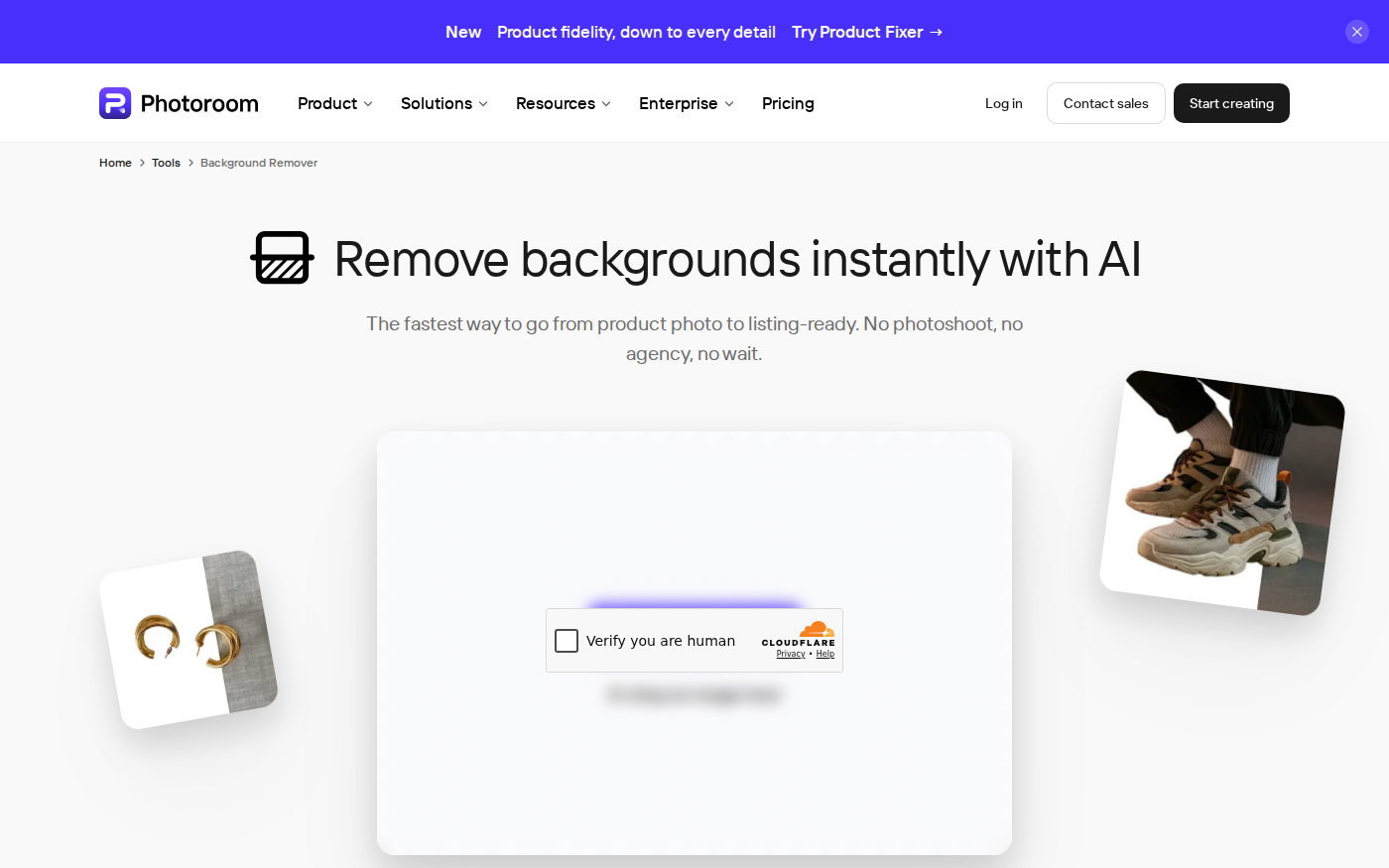
PhotoRoom vs Pixlr: Which Is Better for Product Photos?
Last checked: September 4, 2026 · Category: AI image tools PhotoRoom is the more direct choice for turning product photos into consistent marketplace images; Pixlr is the more flexible choice when…
CapCut vs Descript: Which Editor Fits Talking-Head Videos?
Last checked: August 28, 2026 · Category: AI video tools CapCut and Descript can both turn a talking-head recording into a captioned video, but they make different parts of the edit feel primary.…