AI B-Roll Generator Workflow 2026: Sora, Runway, Kling, Pika, and Luma
Last updated: August 6, 2026 · Category cluster: AI video tools
The weakest shot in an AI-assisted video is often the one nobody planned. A marketing team records a clear interview, then discovers that the edit needs a warehouse aisle, a close-up of a package, a rainy commute, or three seconds of an abstract data flow. Stock footage looks generic. A reshoot is too slow. An AI B-roll generator seems like the obvious answer—until a warped label, impossible hand, changing product color, or unlicensed reference image turns a small insert into a publishing risk.
This guide is for in-house video teams, agencies, solo editors, product marketers, course creators, and small companies that need supporting footage rather than an entirely synthetic film. We compare Sora, Runway, Kling, Pika, Luma Dream Machine, and Adobe Firefly as shot-making tools. The aim is not to crown one model. It is to build a repeatable path from an editorial gap to an approved clip.
Our central rule is blunt: generated B-roll may illustrate a mood, place, process, or transition, but it must not manufacture evidence. If the narration says your product survived a drop test, show the real test. If a customer describes a factory, do not generate a fake version and present it as documentary footage. AI works best in the spaces where the audience understands that the image supports the story rather than proves the claim.
- Start with the editorial gap — write what the shot must explain, how long it appears, and what it must never imply.
- Generate shots, not finished stories — three to six seconds with one subject and one camera move is easier to inspect and edit.
- Use references you can document — approved product renders, owned photography, color values, and a written rights note beat a folder of mystery images.
- Judge every frame, not the thumbnail — hands, text, logos, reflections, object count, and physical continuity can fail between attractive endpoints.
- Preserve provenance — keep the tool, model or mode, prompt, inputs, generation date, editor, approval, and final destination beside each used clip.
Give AI B-roll a defined editorial role
B-roll is supporting footage placed over narration, an interview, or another main audio track. It can establish a location, hide a cut, show a process, reset attention, or add emotional texture. AI-generated B-roll does the same job, but the source is synthetic. That difference changes the review standard. A normal stock clip may be irrelevant or overused; a generated clip can also invent a false event, person, product feature, or environment.
Begin by labeling the gap on the edit timeline. Use one of five roles: establish, explain, transition, conceal, or evoke. “Establish” might show a broad, non-identifiable city morning before a remote-work story. “Explain” could visualize packets moving through an abstract network. “Transition” moves from a physical office to a cloud dashboard. “Conceal” covers a jump cut. “Evoke” supplies atmosphere—a quiet desk at 2 a.m., for example. The label gives reviewers a reason for the shot to exist.
Next, mark the evidence level. A purely illustrative clip can tolerate stylization. A clip near a factual product claim needs tighter controls. Documentary, testimonial, safety, medical, legal, financial, and news-like contexts deserve the highest caution. In those cases, use real footage, verified screen recordings, diagrams, or clearly labeled reenactments. A model can make a convincing laboratory in seconds. Convincing does not make it true.
We recommend a “synthetic footage boundary” in the project brief. List subjects that may be generated and subjects that may not. A software company might allow abstract servers, generic workspaces, and transitions while banning customer sites, product UI, employee likenesses, and performance demonstrations. An ecommerce brand may allow background atmosphere but require every product-facing frame to come from approved photography. These rules remove guesswork when an editor is under deadline.
The findaiverse AI video hub contains tools for generation, editing, avatars, captions, and localization. Keep those jobs separate. A strong generator does not automatically provide the timeline control, subtitle workflow, rights review, or export settings your delivery channel requires.
Write a shot brief before an AI B-roll prompt
A prompt is an instruction to a model. A shot brief is an agreement with your editor and reviewer. The brief should survive even if you switch from Sora to Runway or decide to shoot the scene with a phone. Write it in ordinary production language before you add style words.
Use a compact set of fields: editorial role, duration, aspect ratio, subject, action, environment, camera, light, visual references, continuity anchors, forbidden elements, factual boundary, and intended placement. A usable example reads: “Four-second transition after the line about overnight order processing; close view of unbranded parcels moving on rollers; fixed camera with shallow depth of field; cool warehouse light; no people, labels, barcodes, company marks, readable text, unsafe stacking, or visible destination.” That is far more testable than “cinematic futuristic logistics.”
Keep one dominant action per shot. Models often lose consistency when a prompt asks a person to enter a room, open a laptop, receive a notification, smile, and rotate the camera in six seconds. Break that sequence into separate candidates. Your editor can create rhythm through cuts. Short, simple shots also make it easier to detect an object that changes shape or an extra hand that appears for two frames.
Camera language should serve the cut. Specify locked-off, slow push, lateral track, handheld drift, macro detail, overhead, or point-of-view only when the edit needs it. Avoid stacking every film term you remember. A slow push toward a stable object may work under a reflective sentence. A lateral tracking shot can connect two spaces. A fast orbit may look impressive in isolation and make the surrounding interview feel like an advertisement from another planet.
Write negative constraints as review items, not magic words. “No logos” in a prompt does not guarantee a clean result. It tells the reviewer what to inspect. The same applies to hands, faces, text, screens, reflections, labels, weapons, safety equipment, and culturally sensitive symbols. Models can ignore or reinterpret a negative instruction, so the final decision always comes from the rendered frames.
Finally, name the intended audio. B-roll timing changes when it sits under a calm voice, a hard cut, a beat, or a sound effect. Export a low-resolution reference of the surrounding eight to twelve seconds and test candidates inside it. A gorgeous clip that does not support the spoken point is still the wrong clip.
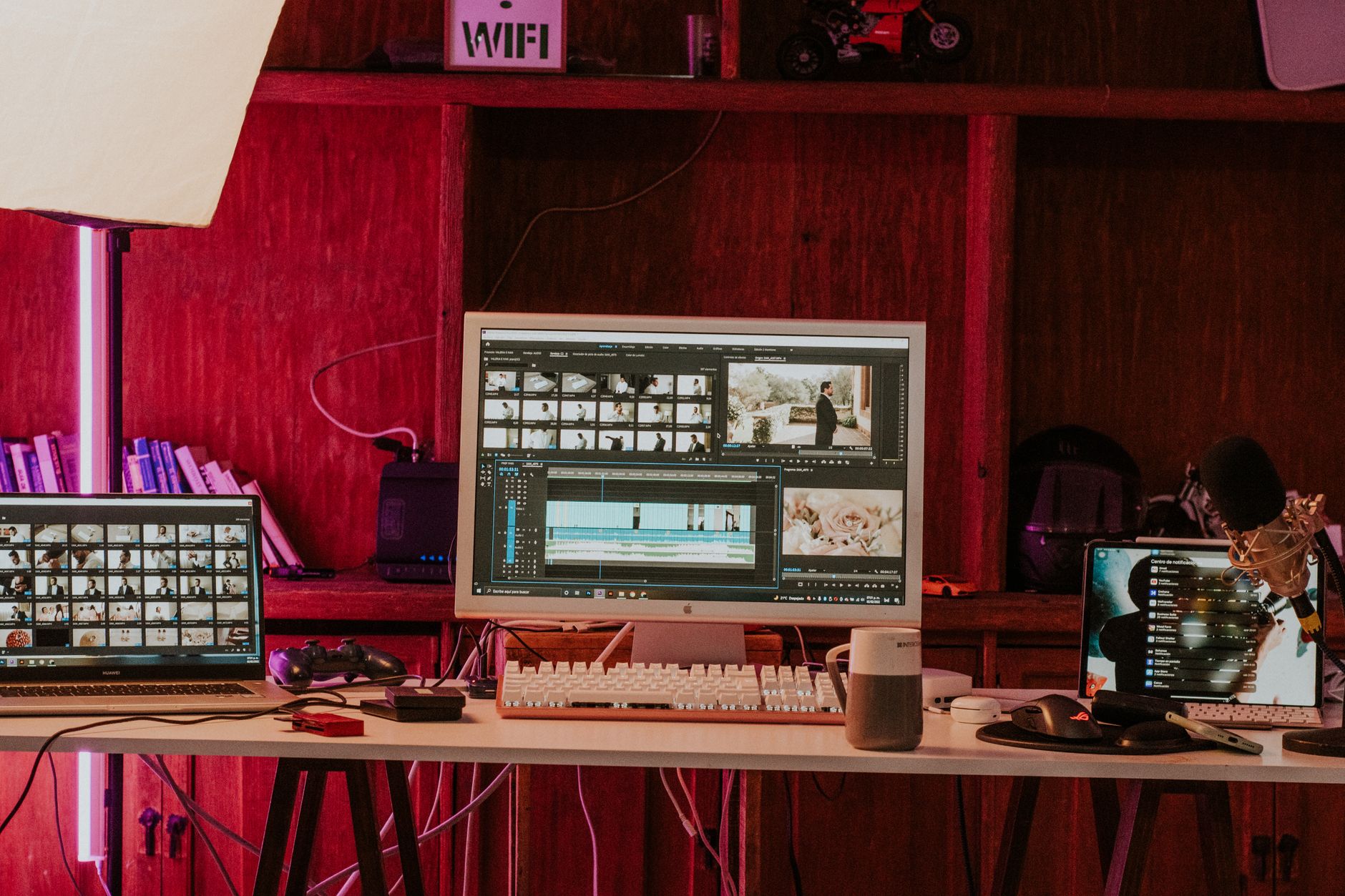
Sora, Runway, Kling, Pika, Luma, and Firefly compared
| Tool | Useful place in a B-roll workflow | Test first | Do not assume |
|---|---|---|---|
| Sora | Storyboard-led exploration, image-led motion, and visually rich establishing inserts. | Prompt adherence, identity stability, camera path, and how well adjacent shots match. | That a realistic environment documents a real place or event. |
| Runway | Image-to-video tests, controlled motion, generative inserts, and post-production experiments. | Reference fidelity, motion controls, edge behavior, and export fit for your timeline. | That an edit-friendly interface removes the need for frame inspection. |
| Kling | Physical action, product-adjacent motion tests, and scenes that need a clear subject path. | Small-object behavior, faces, hands, brand details, and regional availability or terms. | That plausible motion makes an unverified demonstration acceptable. |
| Pika | Fast social inserts, playful transformations, loops, and short visual punctuation. | Effect intensity, frame edges, timing, and whether the style overpowers the main story. | That a social-ready effect fits a restrained company video. |
| Luma Dream Machine | Atmospheric motion, concept exploration, and image-driven transition candidates. | Scene persistence, camera movement, start and end frames, and texture stability. | That one strong generation will extend cleanly into a longer sequence. |
| Adobe Firefly | Creative Cloud-adjacent production, controlled visual exploration, and teams that already review assets in Adobe workflows. | Current model choice, commercial terms, content credentials, and handoff into the actual editor. | That vendor positioning replaces your own rights and claim review. |
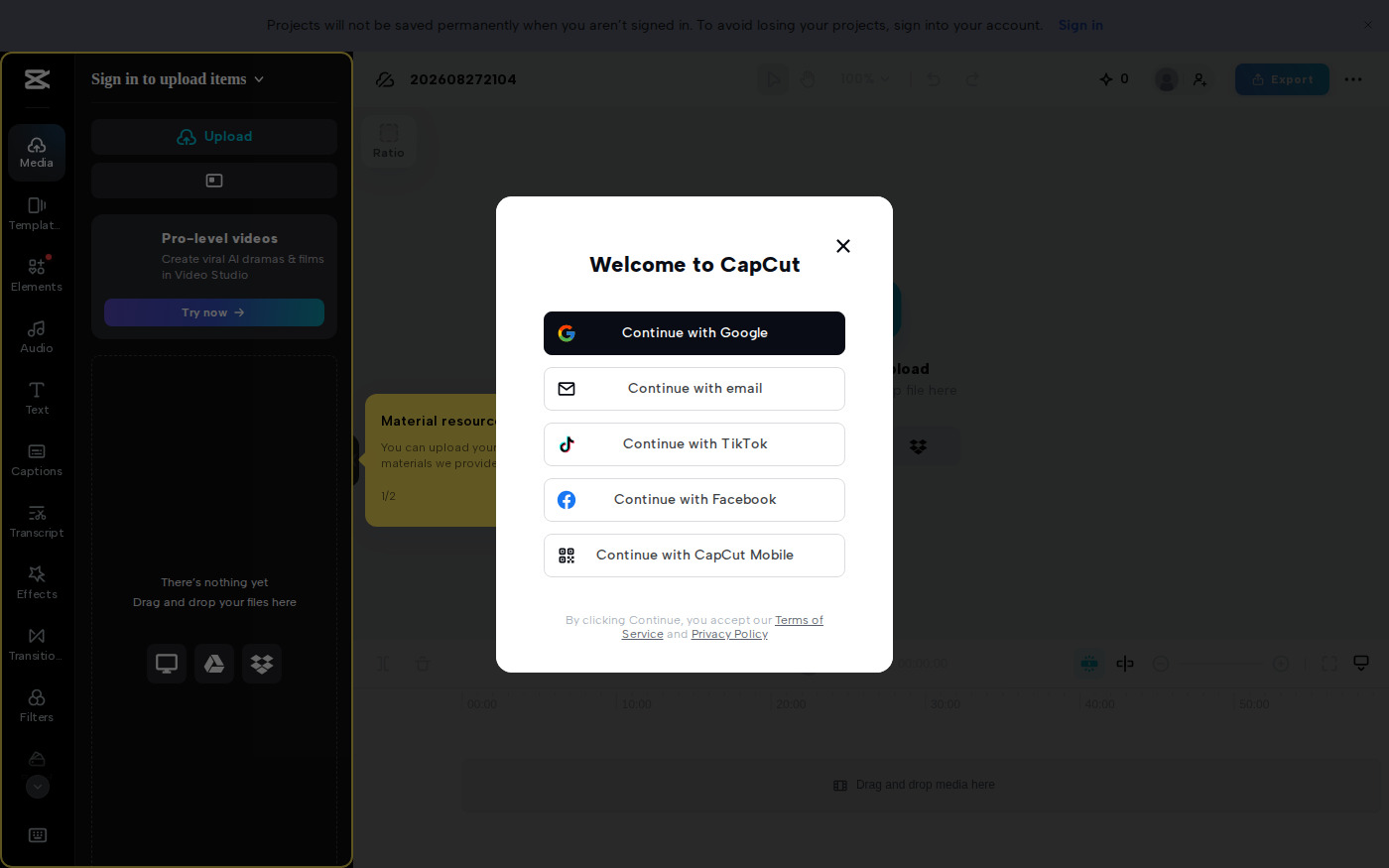
Pick two candidates for a pilot, not six subscriptions. One should fit the visual job; the other should fit the operating environment. A small social team may value quick variations and a short route into CapCut. A post-production team may care more about controlled references, clean exports, color management, and how the generated files behave in its existing editor.
Run the same five-shot test in each product. Include a locked object, a human action, a reflective surface, a camera move, and a style match to owned footage. Record generation time, usable seconds, correction time, rejected reasons, and total credit cost. Do not score the demo gallery. Score the clips your team can actually publish.
Build a legal and visual reference packet
Image-to-video often gives you more control than a text-only prompt, but it also creates a clean trail back to the input. That is useful only when the input is safe. Build a small project packet with assets your organization owns, licensed stock that permits the intended use, approved product renders, brand colors, texture examples, framing references, and release records for recognizable people.
Do not scrape a director’s reel, a photographer’s portfolio, a competitor’s campaign, or a celebrity image into a private “mood board” and assume generation makes the source problem disappear. Internal inspiration and machine input are not automatically the same legal use. Ask the rights owner or your counsel when the license is unclear. If you cannot explain where a reference came from, remove it from the packet.
Separate visual facts from visual taste. Facts include the product’s color, port placement, packaging count, safety gear, room layout, or approved interface. Taste includes contrast, lens feel, pacing, depth, grain, and palette. A generator may help with taste. It should not improvise facts that customers could rely on. For a real product, lock factual details through approved photography or 3D renders and use synthetic motion around them only after a close review.
Create a one-page continuity sheet. List the hero color values, light direction, time of day, focal length range, camera height, motion speed, grain, wardrobe boundaries, prop count, and elements that must stay fixed. Attach two or three approved frames—not twenty. Too many references can conflict, and reviewers will struggle to say which one the output was supposed to match.
Keep people out of the first pilot unless the story truly needs them. Human identity adds consent, representation, wardrobe, anatomy, and disclosure questions. Objects, abstract motion, landscapes with no identifiable location, and empty environments can reveal whether the tool fits your workflow with less risk. When a person is necessary, document whose likeness or performance is used and what permission covers the generated derivative.
Adobe explains how text-to-video and image-to-video inputs work in its current Firefly interface. Use vendor documentation to verify current controls, supported uploads, and output rules at the time of production. Features and terms can change after this article’s update date.
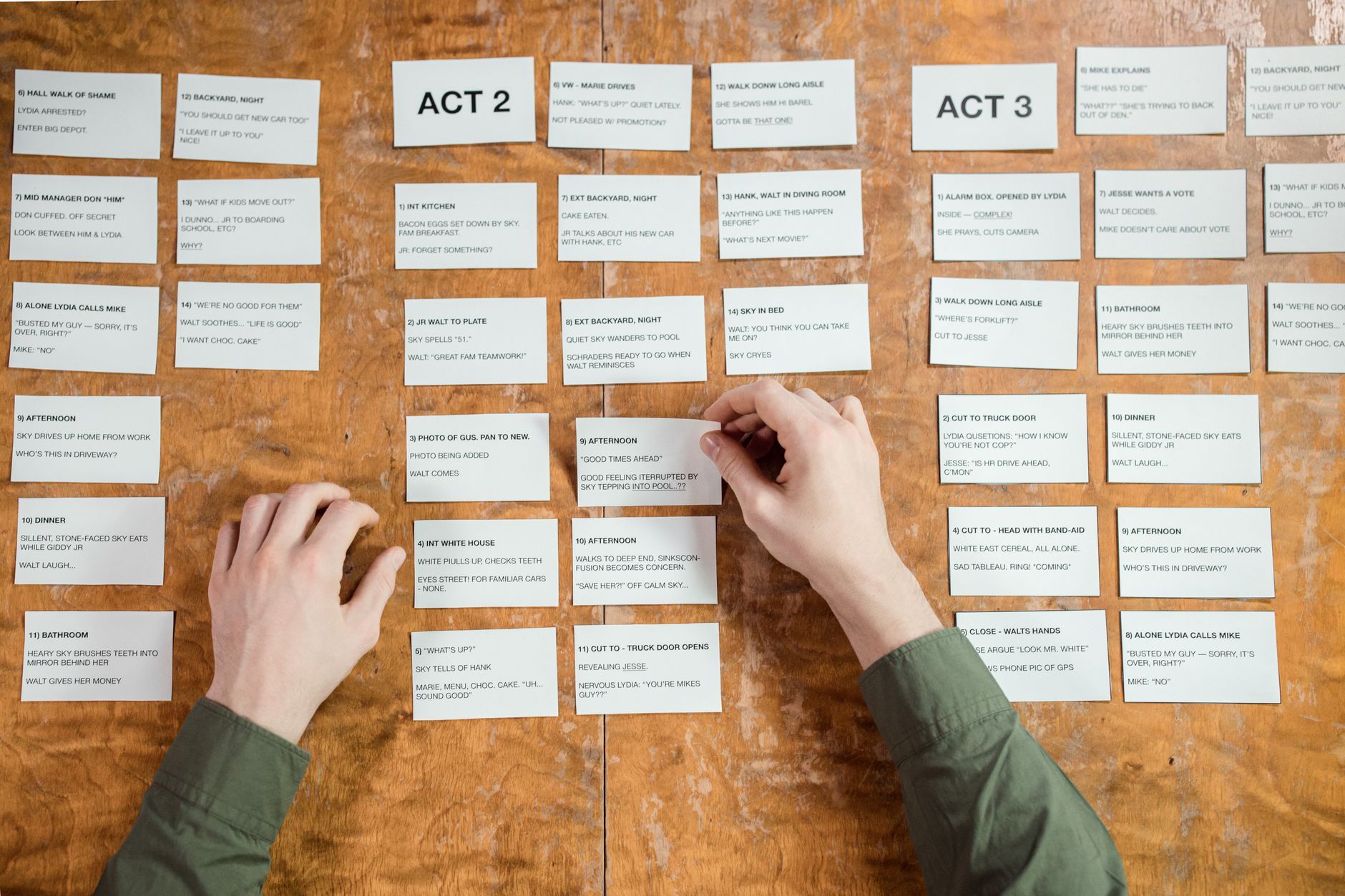
Generate in cheap, controlled passes
Production teams waste credits when they chase polish before composition. Use three passes. In the first pass, generate low-cost candidates to answer one question: does the subject, action, camera, and timing fit the edit? Ignore fine texture. Reject any direction that cannot be described in one sentence. Save only the candidate IDs that solve the editorial gap.
The second pass tests continuity. Feed the approved reference, tighten the prompt, and change one variable at a time. If the camera is wrong, change the camera. If the box count drifts, simplify the frame or replace the boxes with a less factual subject. Changing light, lens, action, environment, and style at once produces a new lottery ticket rather than an informed iteration.
Use a seed, variation link, project branch, or generation history where the product provides one. File names should carry the shot ID and iteration: “BR07_warehouse-transition_v04,” not “final-final-good2.” Add the generation record before downloading. Browser histories expire, accounts change, and a clip detached from its origin becomes difficult to audit.
The third pass produces delivery candidates. Generate enough handle at the beginning and end so the editor can cut around a defect. If the tool cannot provide handles, plan to use a shorter middle section. Avoid slow motion as an automatic fix; it can make temporal errors more visible. Upscaling should happen after selection, not on every candidate.
Listen to the shot with the real soundtrack. Synthetic motion can feel too smooth, too busy, or oddly weightless. A restrained sound effect may help, but it must match the scene. Do not use generated mechanical sounds as proof that an unseen process happened. Keep sound design in a separate track so another editor can replace it.
A useful stop rule prevents endless rerolls. Set a maximum number of generations or a credit budget per shot. When the limit arrives, choose one of four actions: simplify the brief, use licensed stock, design a motion graphic, or schedule a real pickup. The model is not owed another attempt. Sometimes the cheapest AI B-roll is footage you already own.
Make synthetic shots belong in a real edit
Generated clips often announce themselves through pacing before viewers notice visual defects. They linger because the team paid to make them. Cut harder. If two clean seconds cover the narration, use two seconds. A short insert can carry texture without asking the audience to inspect a synthetic scene for long.
Match the surrounding footage. Compare black levels, white balance, contrast, saturation, grain, shutter feel, motion blur, and camera stability. A warm handheld interview followed by a glassy, perfectly stabilized blue warehouse feels disconnected. Grade the B-roll toward the project rather than grading the entire project toward the generated shot.
Build sequences from editorial cause and effect. A person mentions a delayed shipment; you show a real order dashboard, then a generic generated weather transition, then verified footage of the receiving team. The synthetic element conveys delay or atmosphere without pretending to show the actual shipment. Placement creates meaning, so review the whole sequence for accidental claims.
Watch graphic matches. A circular object in the main footage can cut to a circular abstract animation. A left-to-right hand movement can continue into a left-to-right package motion. These connections make disparate sources feel designed. They also let you use less literal B-roll, which often reduces factual risk.
Text inside generated video remains a weak point. Replace labels, signs, interface elements, charts, and product copy in the editor with approved graphics. Track or mask the replacement if the surface moves. Never assume a one-frame spelling error is harmless; viewers pause videos, and platforms may select any frame as a preview.
For captioned delivery, keep synthetic detail away from the lower text-safe area. If you plan to finish social versions in CapCut or create text-led cuts in Descript, test the real caption style before approving composition. The subject should not disappear behind two lines of text on a phone.
Run frame, claim, and disclosure QA
Review at normal speed, half speed, and frame by frame. Normal speed reveals rhythm. Half speed reveals motion breaks. Frame stepping exposes duplicated limbs, changing logos, crawling textures, object swaps, bent edges, and reflections that tell a different story from the main image. Check the first and last frames separately because editors often use them for transitions or thumbnails.
Then conduct a claim review. Write what a reasonable viewer could infer from the sequence. Does the clip imply a real customer, location, test, result, employee, or event? Does it appear to show your product when it actually shows a generated stand-in? Could a safety procedure be copied from the footage? If the answer is yes, replace the shot, add a clear label, or use verified material.
Disclosure rules differ by channel and context. YouTube asks creators to disclose realistic altered or synthetic content in specified cases; review its current altered or synthetic content guidance before upload. Platform labels are not a substitute for clear editorial disclosure when a clip could mislead viewers. Put the explanation where the audience can see it, not only in an internal log.
Check accessibility too. Fast flicker, camera motion, low contrast, and text embedded in the clip can make a short insert difficult to follow. Captions describe speech, not every relevant visual event. If the B-roll conveys information that the narration does not, consider an audio description or rewrite the narration so the meaning does not depend on sight alone.
Finally, review privacy and security. Generated office scenes can accidentally resemble real badges, dashboards, or access points. Reference uploads may contain customer names, metadata, faces, or unreleased products. Crop and redact before upload, follow your approved vendor list, and give the generation tool only the material required for that shot.
Manage versions, cost, and approvals
Treat a used AI clip as a production asset, not a temporary download. Store the shot ID, brief, prompt, negative constraints, references, input rights, tool, model or mode, generation date, raw output, chosen in/out points, editor, approver, disclosure decision, final exports, and every destination. This record lets you answer a client question months later without reconstructing the browser session.
Separate creative approval from factual approval. The editor decides whether the shot supports pacing and tone. A product owner confirms that objects and claims are accurate. Brand reviews identity. Legal or policy owners review higher-risk use. One person may hold several roles in a small team, but the questions should remain distinct. “Looks good” is not proof that the shot is true or permitted.
Track cost as accepted seconds, not generations. Divide total generation and correction cost by the number of seconds that reached final delivery. A tool that produces twenty beautiful rejects may cost more than a modest tool whose outputs fit the brief. Include review time, upscaling, storage, and replacement work. Credits alone hide the real expense.
Create an expiry trigger for factual or product-adjacent clips. A new package, interface, policy, office, or safety rule can make old footage misleading. Add the clip to the same update queue as screenshots and product documentation. Generic atmosphere may last longer, but every reused shot should still pass the new context review.
Run the pilot with one format and one owner. Five shots for a 60-second video are enough to expose generation, review, handoff, and export problems. Only then expand to campaign variants or multiple aspect ratios. Browse the AI video category when the workflow reveals a specific gap, rather than collecting products before you know which job is missing.
Field notes from findaiverse curation
When we compare video products for findaiverse, the most useful test is not “Which clip looks most cinematic?” We ask whether another editor can reproduce the direction, whether a reviewer can trace the source, whether the output survives a frame check, and whether the tool fits a real delivery path. A spectacular clip with no usable handles or provenance can be less valuable than a plain clip that drops cleanly into the cut.
We also separate generation quality from correction cost. Motion may be convincing while product details drift. A face may stay stable while the background mutates. The opening frame may match the reference while the final frame invents a new label. A single overall score hides those differences, so our review sheet uses separate marks for subject, action, camera, continuity, text, anatomy, factual risk, and editability.
The failure we see most often in workflow design is asking one tool to be a studio. Generation, editing, captioning, rights tracking, review, localization, and publishing are different jobs. You may generate with Runway, cut in a conventional editor, create captions with another product, and archive approvals in a project system. That is not inefficiency. It is a visible chain of responsibility.
Disclosure: findaiverse lists free and paid tools, and this article is editorial guidance rather than a paid ranking. Models, access, prices, output rules, and terms change. Verify current vendor documentation and run your own rights-approved pilot before committing client or confidential assets. You can compare more options in the findaiverse AI tools directory.
Frequently asked questions
What is an AI B-roll generator?
An AI B-roll generator creates short supporting video clips from text, images, or existing footage. Editors place those clips over narration or interviews to establish a scene, explain an idea, cover a cut, or add mood. Generated B-roll remains synthetic and should not be presented as proof of a real event, product result, or customer experience.
Which AI video tool is best for B-roll?
There is no single best choice for every production. Test Sora, Runway, Kling, Pika, Luma Dream Machine, or Firefly against the same five real shot briefs. Compare usable seconds, reference fidelity, camera control, correction time, rights requirements, team workflow, and cost. Pick the product that creates approved footage inside your process, not the one with the best demo reel.
Can AI-generated B-roll be used commercially?
Commercial use depends on the tool’s current terms, your plan, the input rights, the people or marks depicted, the destination, and local law. A vendor’s permission to use an output does not clear an unlicensed reference or misleading claim. Keep source records, check terms at generation time, and ask qualified counsel when the rights or context are uncertain.
Should every AI-generated clip be labeled?
Requirements vary. Realistic synthetic footage that could mislead viewers deserves clear disclosure, and platforms may require a specific altered-content setting. Stylized transitions may be treated differently. Write a channel policy before production, follow current platform rules, and disclose more clearly when a clip resembles documentary evidence or a real person, place, product, or event.
How long should an AI B-roll shot be?
Many supporting inserts only need two to six seconds in the final edit. Generate enough material to provide clean handles, then use the shortest section that carries the point. Simpler shots with one action and one camera move are easier to inspect, match, and replace than long synthetic sequences.
Make one missing shot boring and accountable
The best first AI B-roll project is not the hero film. Pick one low-risk gap: an abstract transition, an empty workspace, a non-branded process texture, or a short atmospheric insert. Write the brief, document the references, set a generation cap, review every frame, and archive the approval. If the shot improves the edit without creating a new factual question, the workflow worked.
Then repeat with one slightly harder shot. That measured progression builds a production system; chasing a perfect demo does not. Compare generation and editing options in the findaiverse video tools hub, and keep the synthetic footage boundary visible on every project.