Best AI Design Tools for Small Teams in 2026: Figma AI, Canva AI, Framer, Napkin AI, Photoroom, and Gamma
Last updated: 2026-06-16 · Category cluster: Design
Small teams do not fail at design because they lack another logo generator. They fail because design work gets scattered: a founder sketches a landing page in a doc, a marketer builds social graphics in Canva, a designer keeps the real component library in Figma, a sales lead edits a pitch deck at midnight, and someone exports product photos from a random background remover. AI can make that mess faster. Or, if you are careful, it can make the whole design system easier to run.
This guide is for founders, marketers, product managers, designers, and operators who need more visual output without turning every asset into a one-off emergency. The design category has matured beyond “type a prompt, get a pretty image.” In 2026, the useful stack is closer to a small production line: Figma AI for interface and component work, Canva AI for fast marketing assets, Framer for landing pages, Napkin AI for turning text into diagrams, PhotoRoom and Remove.bg for product images, and Gamma or Beautiful.ai for decks that do not look like rushed spreadsheets.
The important choice is not which tool has the loudest launch video. The important choice is where each tool belongs in your workflow. A messy tool chain creates duplicated work, inconsistent visuals, and approval problems. A clear tool chain gives each person a place to start, a place to edit, and a place to approve. That is what this article focuses on.
- Separate design jobs before picking software — UI design, marketing graphics, landing pages, diagrams, product photos, and pitch decks should not all live in one AI tool.
- Keep Figma as the source of truth when product UI matters — Figma AI can speed up naming, exploration, and mockups, but the design system still needs human rules.
- Use Canva and Gamma for speed, not final brand governance — they are excellent for drafts and repeatable templates, but teams still need approved fonts, colors, and export checks.
- Treat AI output as editable material — the safest workflow keeps text, logos, data, and legal claims in layers humans can inspect.
Why AI design tools are now a team workflow decision
Five years ago, a small company could keep design fairly simple. The product designer lived in Figma. The marketer lived in Canva. The website lived in Webflow, Framer, or a codebase. Sales decks lived in Google Slides. Product photos came from a photographer or a basic editor. The boundaries were annoying, but at least they were visible. AI design tools blurred those boundaries. Now a marketer can create a landing page draft, a founder can generate a deck, a support lead can make an infographic, and a designer can create variants in seconds. That sounds freeing until nobody knows which asset is official.
The first question is therefore not “What is the best AI design tool?” It is “Where should ideas become assets, and where should assets become approved?” Ideas can start almost anywhere. A quick diagram in Napkin AI can clarify a blog post. A rough page in Framer can help a founder explain a campaign. A Canva social template can rescue a launch day. But approved assets need a source of truth: brand colors, type scale, spacing, logo use, screenshots, product claims, and file naming. Without that source, AI multiplies visual debt.
A useful rule is to divide design into discovery, assembly, review, and publishing. Discovery is where AI shines: visual directions, layout options, first diagrams, deck outlines, and product-photo backgrounds. Assembly is where templates, components, and design systems matter. Review is where humans check claims, accessibility, brand fit, and legal sensitivity. Publishing is where dimensions, alt text, compression, and destination rules matter. The findaiverse Design category is built around that workflow view, because tool lists only help when you know the job each tool should do.
This is why small teams need fewer random subscriptions and more explicit lanes. If a tool cannot name its lane, it becomes another place to lose assets.
The six design jobs a small team should separate
Start by separating six jobs. The first is product and UI design. This is where Figma still belongs at the center because components, states, variables, comments, and developer handoff matter. Figma AI can help generate ideas, rename layers, organize files, summarize feedback, and create first-pass layouts, but it should not replace the design system. The second job is marketing graphics: social posts, blog images, ads, thumbnails, event banners, lead magnets, and one-off campaign assets. Canva AI is strong here because it wraps AI features inside templates that non-designers can actually finish.
The third job is web and landing pages. For many small teams, a page is not a pure design artifact; it has copy, layout, forms, analytics, responsiveness, and publishing pressure. Framer is valuable because it moves from visual idea to live page quickly. It is especially useful for campaign pages, waitlists, product announcements, and experiments where the page should be published this week, not handed to an engineering queue next month.
The fourth job is visual explanation. Blog posts, white papers, internal docs, sales decks, and onboarding materials often need diagrams more than decoration. Napkin AI fits this lane because it turns text into visual structures: flow diagrams, comparison frames, process maps, and simple infographics. The fifth job is product image cleanup. Ecommerce listings, app store images, marketplace thumbnails, and comparison cards need clean subject isolation, realistic backgrounds, and consistent shadows. PhotoRoom and Remove.bg are not glamorous, but they save real time.
The sixth job is presentation design. Gamma, Beautiful.ai, SlidesAI, and Tome can turn rough ideas into deck structures quickly. The trick is not to let the deck become a landfill of AI-written bullets. Use these tools for structure, layout, and pacing. Then rewrite the claims, simplify charts, and make sure each slide has one job.
Figma AI, Canva AI, Framer, Napkin AI, Photoroom, and Gamma compared
| Design need | Best starting tools | Use it for | Watch out for |
|---|---|---|---|
| UI and product design | Figma AI | Exploration, layer cleanup, file search, feedback summaries, mockups. | Do not let generated layouts bypass your component rules. |
| Marketing graphics | Canva AI | Templates, campaigns, quick exports, social formats, brand kits. | Template sameness and unmanaged font or logo edits. |
| Landing pages | Framer | Fast page drafts, responsive sections, product experiments. | Copy quality, analytics setup, forms, and performance checks. |
| Diagrams and explainers | Napkin AI | Flow maps, comparison visuals, blog diagrams, onboarding concepts. | Over-decorated diagrams that hide the actual idea. |
| Product images | PhotoRoom, Remove.bg | Background removal, marketplace thumbnails, image cleanup. | AI backgrounds that misrepresent product size or material. |
| Presentations | Gamma, Beautiful.ai, SlidesAI | Deck outlines, slide structure, visual rhythm, early proposals. | Generic claims, weak proof, and crowded slides. |
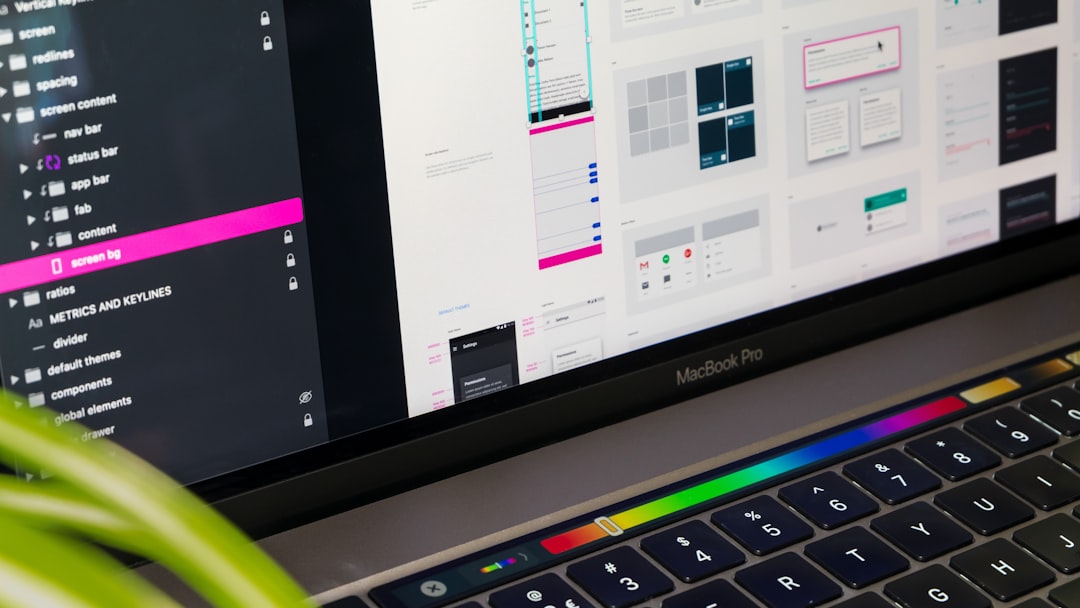
Figma AI is best when the design file is already part of a serious product workflow. Its value is not just generating screens; it is reducing file friction. Teams waste hours searching for old explorations, cleaning layer names, summarizing comment threads, and creating small variants. AI can help there. Still, a generated screen is only a proposal. Your spacing tokens, component states, accessibility rules, and responsive behavior must remain governed by the design system.
Canva AI has a different job. It democratizes production. A founder can make a launch banner without waiting for a designer. A customer success manager can create an event graphic. A content team can keep a weekly format alive. That is useful, but it also creates a risk: everyone becomes a junior designer with export access. Brand kits, locked templates, approval rules, and shared folders matter more when Canva spreads across the company.
Framer is the most interesting tool for teams that need to publish. It sits between design and website operations. If a page can be built, tested, and edited by the same small group, campaign speed improves. But do not confuse “published” with “finished.” Check mobile layouts, page speed, metadata, forms, tracking, accessibility, and the clarity of the offer. AI can draft sections, but conversion still depends on message-market fit.
Napkin AI, PhotoRoom, Remove.bg, and Gamma look smaller on paper, but they often remove the exact bottlenecks that slow a team down. A clear diagram can make a sales page understandable. A clean product image can improve a marketplace listing. A deck with a better story arc can save a meeting. The best AI design stack is not the one with the broadest feature list. It is the one that removes your repeat mistakes.
A practical design workflow from brief to published asset
A reliable AI design workflow starts with a brief that fits on one screen. Write the audience, channel, size, asset type, message, must-use brand elements, forbidden claims, source material, deadline, owner, and approval path. If that feels too formal, remember what happens without it: people generate dozens of attractive assets that answer different questions. A five-minute brief saves a thirty-minute argument later.
Next, choose the lane. If the asset is a product interface, start in Figma and keep the design system visible. If it is a social post, start from an approved Canva template. If it is a landing page, sketch the structure in Framer or Figma before writing final copy. If it is an explainer, draft the paragraph first and let Napkin AI turn it into a visual. If it is a product photo, clean the real image before inventing a background. That order matters because AI tools are persuasive; they make half-right assets look finished.
During generation, ask for variation with constraints. Do not say “make it better.” Say “keep the headline area empty,” “use our purple and off-white palette,” “avoid fake charts,” “show a three-step workflow,” “make the product smaller,” or “create a calmer B2B version.” Then move the best candidate into the assembly tool. For many teams, assembly means Figma for product/UI, Canva for campaign assets, Framer for web, and Google Slides or Gamma for presentations. Keep text editable whenever the words carry information.
Review should be boring. Check logo use, typography, contrast, mobile cropping, alt text, product accuracy, legal claims, customer promises, source images, and file names. For web assets, check loading size and responsive breakpoints. For decks, check whether each slide has a single point and whether the chart supports the claim. For product photos, compare against the real product. Good design review is not anti-AI. It is the reason AI output can be used in public.
Finally, store the asset history. Save the prompt, tool, source files, exported files, version number, owner, and publish destination. If the asset works, you want to reproduce it. If it fails, you want to know why. A shared asset log can be as simple as a spreadsheet with links. The team that records its design experiments learns faster than the team that only saves final PNGs.
Brand systems, approvals, and the places AI still breaks
AI design tools are strongest at first drafts and weakest at institutional memory. They do not know which old campaign damaged trust. They do not know why your brand avoids certain colors. They do not know that a product screenshot contains an outdated feature, or that a customer quote needs legal clearance. This is why brand systems need to become more explicit, not less. A design system is no longer only for designers. It is a safety rail for anyone using AI to produce visual work.
At minimum, keep a brand folder with approved logos, color values, fonts, screenshot rules, product image rules, claims that are allowed, claims that are banned, and examples of good and bad assets. Canva brand kits, Figma libraries, Framer components, and deck templates should point back to the same rules. If a tool lets you lock parts of a template, use that feature. If it does not, limit who can publish from it.
Accessibility also needs human attention. AI-generated layouts often look balanced while hiding low contrast, tiny text, unclear focus order, or mobile cropping issues. Use a contrast checker, test at phone size, and read the asset without the image. If the message disappears without the image, the design may be too fragile. For websites, follow the practical guidance from W3C accessibility resources and keep alt text meaningful. For privacy and data use, review each tool’s current policy, especially before uploading client material or unreleased product screens. Figma, Canva, and Adobe all publish AI or data-use notes; read the current version before making a company-wide rule.
The most common failure is not ugly output. It is plausible output. A generated dashboard looks real but the numbers are fake. A product background looks premium but the scale is wrong. A deck slide makes a confident market claim with no source. A landing page section promises a feature that engineering has not shipped. These failures are dangerous because they survive a quick glance. Build a review step that specifically hunts for plausible nonsense.
Recommended stacks for startups, agencies, and content teams
A seed-stage startup with one designer and two marketers should keep the stack simple. Use Figma AI for product and website design, Canva AI for repeatable marketing formats, Framer for quick landing pages, and Gamma for investor or customer decks. Add Napkin AI when the product is hard to explain in words. Add PhotoRoom or Remove.bg only if product images are part of acquisition. The operating rule should be clear: Figma is the source for product visuals; Canva is for campaign exports; Framer is for live pages; decks are reviewed before sending.
An agency needs a stricter split. Client work requires source traceability, approvals, and reusable templates. Use Figma for interface and design systems, Canva only when the client will maintain assets, Framer for fast microsites after scope is agreed, and presentation tools for proposal drafts rather than final strategy. Store prompts and source images per client. Never mix client reference material across accounts. A small mistake here can become a trust problem.
A content-led company should prioritize speed and consistency. Canva AI can own social, newsletter, and blog graphics. Napkin AI can turn long posts into diagrams. Gamma or Beautiful.ai can create webinar and course decks. Framer can host campaign pages. Figma should still hold master templates and brand examples, even if non-designers rarely open it. The goal is not design purity; it is enough structure to publish often without looking like five different companies.
An ecommerce team should treat AI design as image operations. PhotoRoom, Remove.bg, Canva AI, and Figma can cover most needs: isolate products, create backgrounds, build marketplace graphics, and assemble comparison images. Be conservative with generative product scenes. If a blanket looks thicker, a bottle looks larger, or a device screen shows a feature that does not exist, the image is no longer just creative. It is a product claim. That should trigger review.
For a privacy-sensitive B2B team, the stack should be smaller and more controlled. Keep product screenshots in Figma, use internal templates, limit uploads to tools with approved policies, and avoid feeding confidential roadmaps into generic generators. You can still benefit from AI: summarize design feedback, generate diagram options from public copy, clean non-sensitive assets, and draft page structures. Privacy does not mean no AI. It means fewer careless uploads.
Field notes from findaiverse curation
After comparing design tools for the directory, one pattern keeps showing up: teams buy tools for creativity but keep them for cleanup. The flashy demo gets attention, yet the daily value is often layer organization, resize variants, background removal, first draft slides, diagram suggestions, and template reuse. That is not disappointing. It is exactly where time disappears in real teams.
Another pattern is that non-designers need guardrails more than freedom. If you give everyone a blank prompt box, you get chaos. If you give them a locked template, three examples, a short prompt recipe, and a review checklist, they can create useful assets without breaking the brand. Canva AI becomes safer. Gamma decks become clearer. Framer pages stop looking like experiments that escaped the lab.
Designers, meanwhile, should not ignore these tools out of pride. The best designers I have watched use AI as a rough assistant, not as a taste replacement. They generate directions, reject most of them quickly, steal one useful composition, then rebuild the final asset with better hierarchy. That is a healthy relationship. The designer remains the editor, and AI provides raw material.
Disclosure: findaiverse lists free and paid AI tools. This article is editorial guidance for tool selection, not a paid placement. Pricing, training-data policies, and commercial terms change, so check each vendor’s current documentation before standardizing a workflow. For a broader view, browse the findaiverse AI tools directory and compare design tools with writing, video, audio, and productivity categories. Real production work rarely fits inside one category.
FAQ
What are AI design tools?
AI design tools are software products that help create, edit, organize, or publish visual assets with machine-learning features. They can generate layouts, rewrite design copy, remove backgrounds, build diagrams, create slide drafts, suggest web sections, or speed up repetitive design tasks. The best results come when AI output is edited inside a clear brand system.
Which AI design tool should a small team try first?
If product UI matters, start with Figma AI. If marketing graphics are the bottleneck, start with Canva AI. If landing pages slow you down, test Framer. If your team struggles to explain concepts, try Napkin AI. If decks waste time, test Gamma or Beautiful.ai. Choose by the asset you publish most often.
Can AI design tools replace a designer?
They can replace some repetitive production work, but they do not replace taste, hierarchy, brand judgment, accessibility review, or accountability. A non-designer can create more assets with AI, yet someone still needs to decide whether the asset is accurate, readable, on-brand, and safe to publish.
How should teams control brand quality when everyone has AI tools?
Create approved templates, lock key brand elements, keep a source-of-truth folder, require review for public assets, and record prompts or source files for important work. The more people can generate visuals, the more explicit your rules need to be. Good guardrails make AI design tools useful instead of chaotic.
Final recommendation
Do not build your AI design stack around novelty. Build it around repeatable assets. Pick one source of truth, one fast marketing tool, one web publishing lane, and one or two specialist tools for diagrams, decks, or product images. Start with the Design hub on findaiverse, test the tools above on real work, and keep the stack small enough that your team can actually follow it.