CapCut vs Descript: Which Editor Fits Talking-Head Videos?
Last checked: August 28, 2026 · Category: AI video tools
CapCut and Descript can both turn a talking-head recording into a captioned video, but they make different parts of the edit feel primary. CapCut opens around media, a visual timeline, effects, transitions, templates, and export controls. Descript starts from an automatic transcript, so deleting or moving words also edits the associated media. The better choice depends less on the length of the feature list than on whether most of your decisions are visual or verbal.
This comparison is based on the public CapCut web editor, CapCut Help Center, and Descript product and pricing pages displayed on August 28, 2026. It does not rank caption accuracy, noise removal, rendering speed, or generated-media quality because no shared footage was processed and scored. Instead, it compares the documented workflow, free limits, paid-plan structure, export resolution, and platform access.
- Choose CapCut when the edit is driven by the frame. Its web workspace puts media, templates, effects, transitions, filters, aspect ratio, captions, and the timeline in one visual editor.
- Choose Descript when the edit is driven by speech. Its defining workflow is editing the transcript like a document, with tools for filler words, audio cleanup, captions, clips, and screen-recorded content.
- Both products overlap more than their positioning suggests. CapCut exposes a Transcript panel, while Descript also provides a timeline and precision controls.
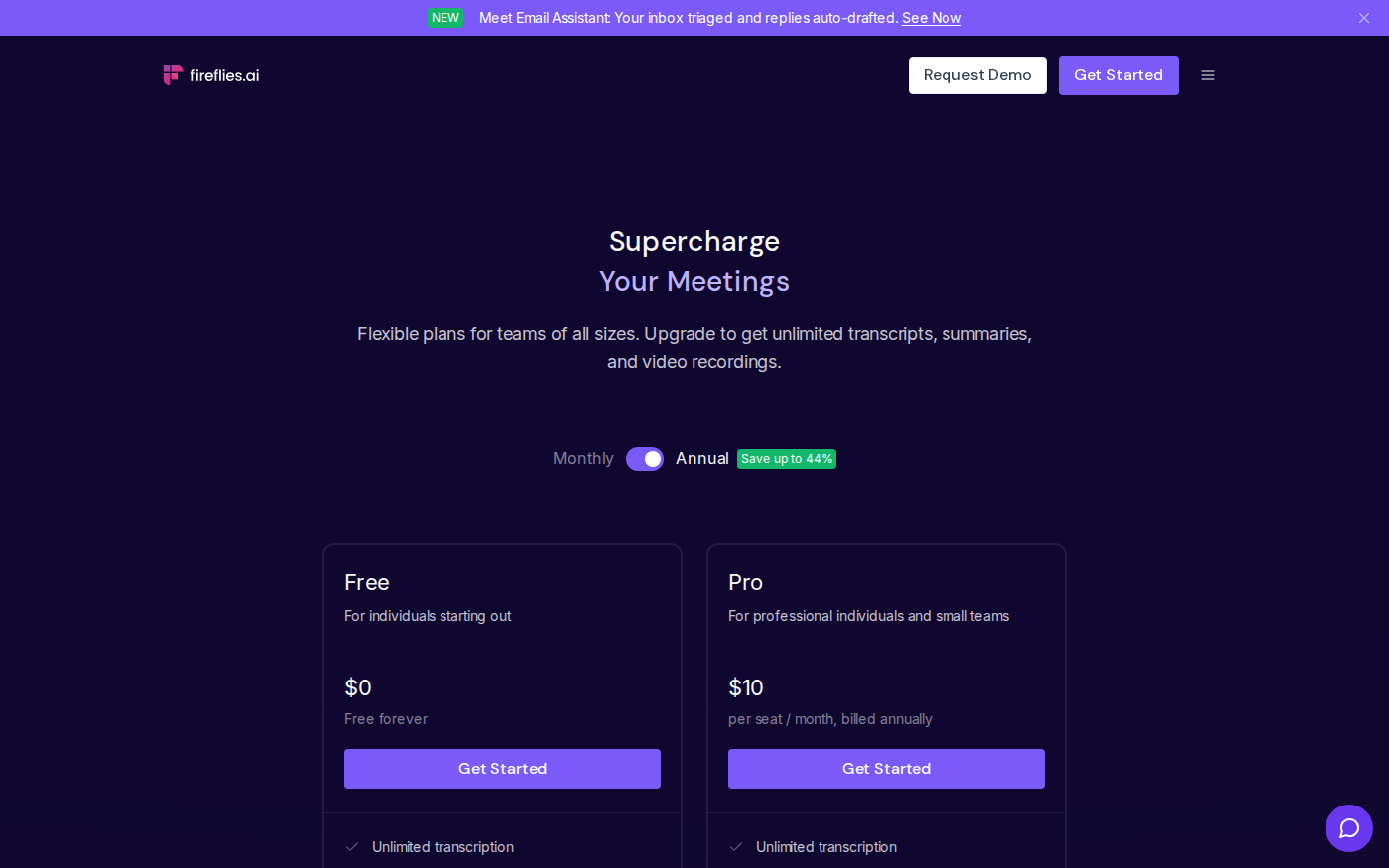
- The free-plan comparison is unusually uneven. Descript publishes a numeric allowance—60 media minutes per month, 100 one-time AI credits, 720p export, and 5GB storage. CapCut offers a free online start but directs users to the account payment page for current regional plan prices and limits.
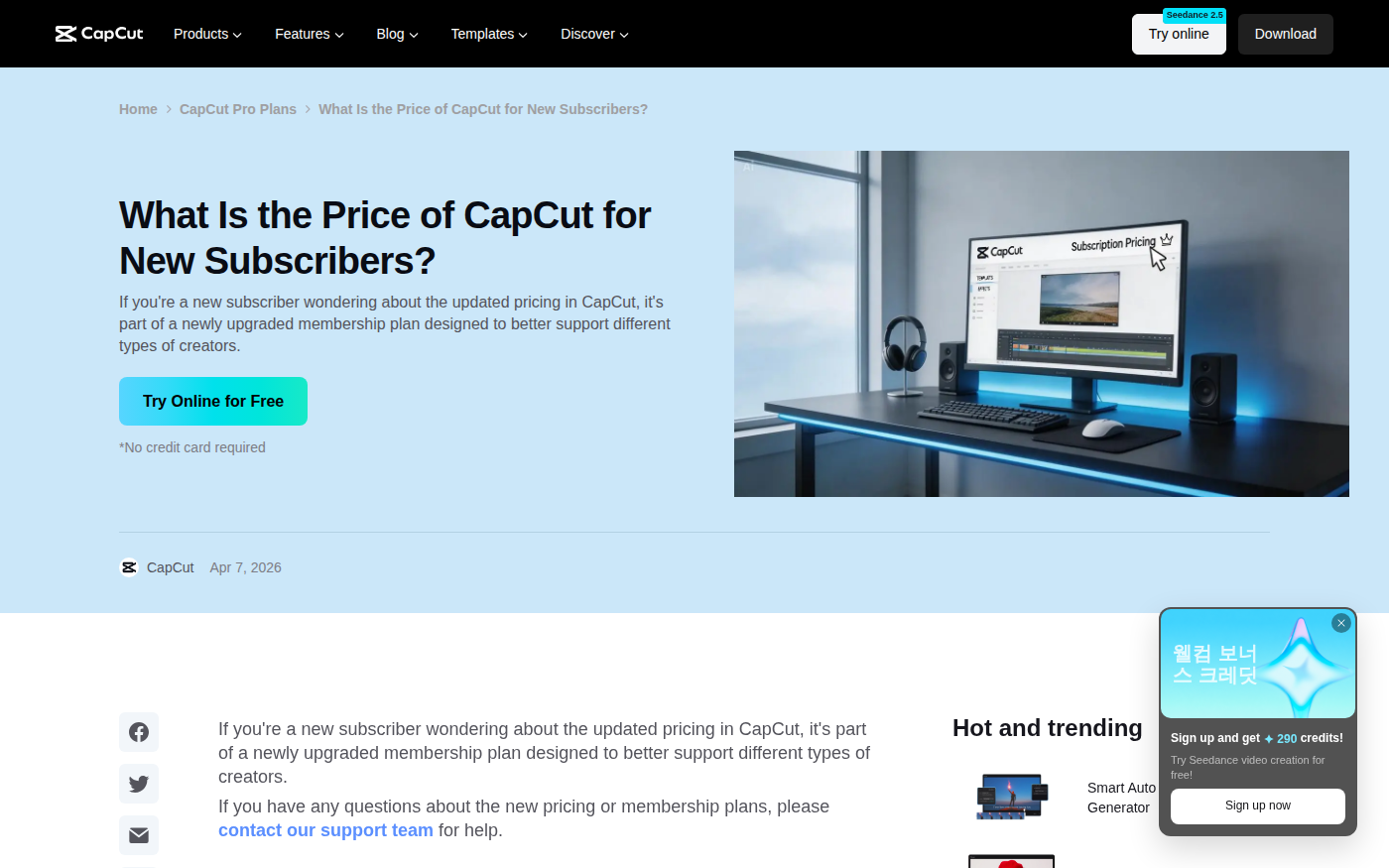
- CapCut Standard is not the direct desktop equivalent of Descript’s paid plans. CapCut’s official help page says Standard benefits are mobile-only in supported regions; Pro benefits extend to mobile, desktop, and web.
The short answer: choose the surface where most decisions happen
Start with the kind of correction you make repeatedly. If you are moving B-roll, timing overlays to a beat, trying different transitions, resizing a composition for vertical video, or applying template-led motion, CapCut is the more direct starting point. Its public web editor places Media, Templates, Elements, Audio, Text, Captions, Transcript, Effects, Transitions, Filters, Brand Kit, and Plugins beside a conventional preview and timeline.
If you are cutting false starts, restructuring an explanation, removing filler words, cleaning spoken audio, turning an interview into clips, or revising a screen-recorded tutorial, Descript makes the transcript the main editing surface. The official product page says footage is transcribed automatically and that deleting or rearranging words updates the video. Scenes, layouts, a timeline, and precision controls remain available when text alone is not enough.
Neither distinction proves that one editor produces a better finished video. It predicts which interface is likely to require fewer translations between your intention and the control you need. A visual pacing decision is easier to express on a timeline; a wording decision is easier to express in a transcript.
Timeline-first versus transcript-first editing
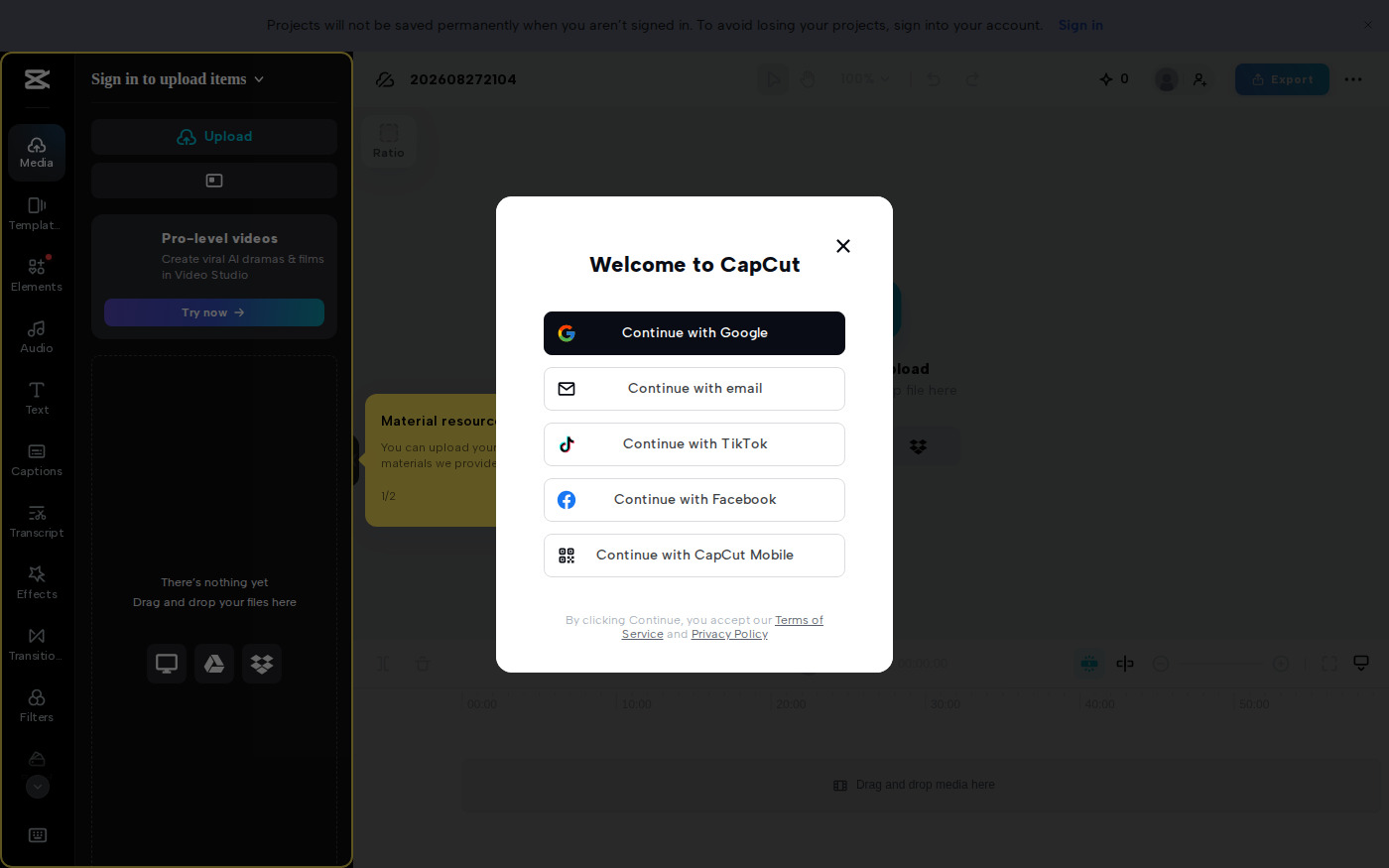
CapCut’s web editor is immediately recognizable as a visual editing workspace. The captured interface shows an upload area, preview, aspect-ratio control, timeline, and Export button. Captions and Transcript are first-class panels, but they sit alongside assets and visual treatments. That arrangement suits short-form videos in which framing, text animation, sound, effects, and pace are changed together.
Descript reverses the emphasis. Its product page describes text-based editing as the core action: backspace removes spoken material, and copy-and-paste can rearrange it. The same page documents automatic transcription, captions, Studio Sound, Remove Filler Words, scenes, layouts, screen recording, generated B-roll, and a visual timeline. This makes Descript more than a transcription utility, but the transcript remains the organizing layer.

The overlap matters. Do not choose CapCut on the assumption that it cannot edit from a transcript, or choose Descript on the assumption that it has no timeline. Instead, ask which surface stays central after the first automatic pass. CapCut keeps you close to the composition; Descript keeps you close to the spoken argument.
Captions, speech cleanup, and visual styling
Both tools advertise automatic captions. In CapCut, caption generation belongs to a larger visual system that includes caption templates, text, effects, transitions, filters, music, and multiple aspect ratios. That is useful when subtitles are also a design element—for example, when individual words need animation, visual emphasis, or styling that matches a short-form template.
Descript connects captions to transcript editing. Its official page also lists Remove Filler Words, Studio Sound, Remove Retakes, Edit for Clarity, translation, and clip creation. These are relevant when the spoken delivery itself needs restructuring before the captions are styled. Descript’s current plan table counts many of these actions against AI credits, so “available” does not always mean unlimited.
For either product, automatic captions require review. Verify names, numbers, product terms, punctuation, speaker changes, and words obscured by music or noise. A caption tool can accelerate the first pass, but its presence on a feature page is not an accuracy measurement. Keep the source recording until the final transcript and export have been checked.
Free limits and current prices
The table below reflects official pages displayed on August 28, 2026. Descript shows US-dollar plan prices and numeric allowances. CapCut does not publish one universal checkout amount on the help pages used here; it states that the final price varies by region, platform, and applicable taxes and should be checked on the payment page. That prevents a clean dollar-for-dollar comparison.
| Plan | Price shown on August 28, 2026 | Published allowance | Export / platform note |
|---|---|---|---|
| CapCut free start | Free online entry; account-level quotas may vary | No single numeric free AI or export allowance published on the checked public pages | Web editor available; sign-in is required for permanent project saving |
| CapCut Standard / Pro | Final amount shown at checkout; varies by region, platform, and tax | Upgraded Pro: 1,200 AI credits and 1TB cloud storage | Standard benefits are mobile-only in supported regions; Pro covers mobile, desktop, and web |
| Descript Free | $0 | 60 media minutes/month; 100 one-time AI credits; 5GB cloud storage | 720p local and web-link video export |
| Descript Hobbyist | $24 monthly or $16/person/month billed annually | 10 media hours/month; 400 AI credits/month; 100GB storage | 1080p, watermark-free |
| Descript Creator | $35 monthly or $24/person/month billed annually | 30 media hours/month; 800 AI credits/month; 1TB storage | 4K, watermark-free |
| Descript Business | $65 monthly or $50/person/month billed annually | 40 media hours/month; 1,500 AI credits/month; 2TB storage | 4K plus team and brand controls |
Descript defines media hours as uploaded or recorded media, whether or not it is transcribed. AI credits cover features such as Underlord, Studio Sound, Green Screen, Eye Contact, and generated media. That distinction is important: a 30-minute source recording affects the media allowance, while AI-assisted processing can also consume credits.

CapCut requires a different buying check. Its help center says the upgraded Pro plan includes 1,200 AI credits and 1TB of storage, while Standard is a lower-priced plan for everyday editing. It also instructs customers to use the in-app subscription or payment page for the current local amount. Record the currency, billing period, tax, renewal price, and eligible platforms before paying.
Web, desktop, mobile, and collaboration
CapCut is the clearer mobile-first option. Its product navigation exposes mobile, desktop, web, and tablet experiences, and Pro is documented as carrying benefits across mobile, desktop, and web when the same account is used. Standard is more restrictive: CapCut says the subscription benefits apply only to the mobile app, even if the account can sign in elsewhere.
Descript works on Mac, Windows, and the web. Its plan model is organized around editors, media hours, storage, and collaboration rather than a mobile subscription. Creator can scale to three separately billed people, while Business can scale to five and adds team-wide Brand Studio, priority support, and stronger translation and avatar options. For a solo talking-head channel, those team features should not determine the purchase unless review and brand governance are real requirements.
Browser access does not remove the need to plan storage. The unsigned CapCut web editor explicitly warns that projects are not saved permanently until sign-in. Descript publishes storage limits from 5GB on Free to 2TB on Business. In both cases, keep original footage and final masters outside the editor’s project cloud.
Which editor fits each job?
Short vertical clips with strong visual styling
Start with CapCut when the video depends on templates, animated text, effects, music, visual rhythm, and several aspect ratios. The workspace keeps those controls close to the timeline. Check which materials carry paid icons before committing to a final design; using a Pro asset can turn export into the point where a subscription prompt appears.
Interviews, podcasts, and spoken explainers
Start with Descript when the main work is deciding what to say, what to remove, and how to reorder it. Transcript editing, filler-word removal, Studio Sound, clip creation, captions, and screen recording are aligned with speech-heavy material. Count the full uploaded recording against media hours, not only the duration of the finished video.
Product demos and software tutorials
Descript has the cleaner conceptual path when a screen recording and narration are revised together, especially if wording changes are frequent. CapCut can be the better fit when the demo needs more visual overlays, template motion, and social cutdowns. A related alternative is Vrew, another transcript-oriented editor worth checking when subtitle-led editing is the priority.
A mixed format with dialogue and dense motion graphics
Choose the tool that handles the bottleneck, not the one with the longest list. If verbal cleanup consumes most of the edit, use Descript and keep visual demands modest. If motion, compositing, and platform-specific styling consume most of it, use CapCut and treat the transcript as one panel in the visual edit.
What switching between them costs
Using both tools can sound attractive, but projects do not move between them as editable native timelines. Exporting from one and importing into the other creates a rendered handoff. That can flatten captions, effects, audio decisions, and scene structure into a new media file. Later wording changes may require returning to the first project and exporting again.
If a two-tool workflow is unavoidable, preserve the original recording, an approved transcript, clean audio, caption files when available, and a high-quality intermediate export. Decide which app owns the final captions and final color treatment to avoid duplicate work. For most solo creators, selecting one primary editor and keeping the other for exceptional jobs is simpler than maintaining every project in both.
Frequently asked questions
Is CapCut or Descript better for talking-head videos?
CapCut is the stronger starting point when visual styling, templates, transitions, music, and vertical framing dominate. Descript is the stronger starting point when transcript revision, filler-word removal, spoken-audio cleanup, and screen-recorded explanation dominate.
Can CapCut edit video from a transcript?
CapCut’s current web interface includes a Transcript panel, and its product site advertises transcript-based editing. Descript still makes transcript editing the central product model, while CapCut places it inside a broader visual timeline workspace.
Is Descript free, and what can the free plan export?
Descript Free is $0 and currently includes 60 media minutes per month, 100 one-time AI credits, 5GB of cloud storage, and 720p local or web-link video export. Some AI tools are marked limited on Free.
How much does CapCut Pro cost?
CapCut’s official help center does not provide one global checkout amount. It says the final price varies by region, platform, and applicable tax and should be checked on the payment page. The same help center lists 1,200 AI credits and 1TB cloud storage for the upgraded Pro plan.
Does CapCut Standard work on desktop and web?
CapCut’s August 13, 2026 help article says Standard benefits are available only in the mobile app in regions where Standard is offered. Pro benefits extend across mobile, desktop, and the web when the same account is used.
Which one is better for automatic captions?
Both advertise automatic captions, but their interfaces emphasize different follow-up work. CapCut connects captions to visual templates and effects; Descript connects them to transcript and spoken-content editing. No accuracy winner can be named without scoring the same recordings under controlled conditions.
Compare the editors before subscribing
Review the CapCut profile, the Descript profile, or browse the AI video tools category for more editing and caption options.